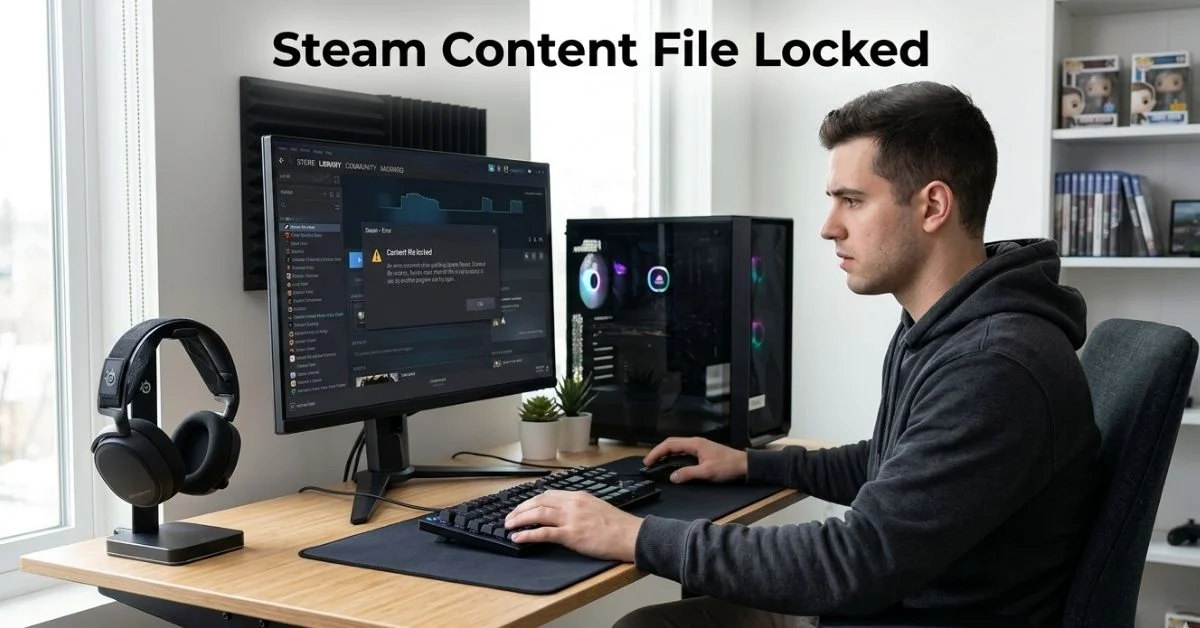
Steam content file locked is one of the most popular gaming platforms, but even seasoned users occasionally run into the “Content File Locked” error. This issue can prevent games from updating or installing properly, leaving players frustrated and unsure how to proceed. The error typically stems from disk write problems, permission conflicts, antivirus interference, or corrupted files, all of which can be addressed with practical solutions. Understanding the cause is as important as fixing it, as applying the wrong solution can lead to repeated errors or data loss.
Fortunately, the error is usually resolvable without technical expertise. By following a structured approach that includes checking permissions, validating game files, and addressing disk or antivirus issues, users can quickly restore functionality. Additionally, taking preventive measures such as clearing caches, maintaining proper folder settings, and staying updated with Steam and system updates reduces the risk of future errors. This guide provides a step-by-step framework to fix the “Content File Locked” error safely and efficiently.
With a focus on practical steps and real-world troubleshooting, this article covers every angle of the issue, including common causes, safe fixes, advanced solutions, and preventive strategies. It also integrates Steam-specific tools like library folder repair and game file validation to ensure users can manage errors effectively. By following these methods, gamers can maintain their Steam library without interruptions and avoid repeating the same errors.
What Causes Steam Content File Locked Error
The “Content File Locked” error often appears when Steam cannot write data to the disk. One common cause is disk write problems, which occur if the drive is busy, full, or experiencing minor faults. Even SSDs or modern hard drives can develop temporary errors that interfere with game updates. Checking the drive’s health and available space is the first step in identifying whether the disk is the root of the problem.
Permissions and admin access also play a significant role. If the Steam client lacks proper privileges to write to the installation folder, it may trigger this error. This often happens after system updates or when moving Steam to a new location. Ensuring the Steam client runs with administrative rights can resolve these conflicts without affecting other system settings.
Antivirus software or firewall rules can block Steam from writing files, mistaking game updates for suspicious activity. Conflicting background applications, including PC optimization tools, may similarly interfere. Finally, corrupted game files can prevent successful updates, requiring validation or repair. Understanding these causes helps guide effective solutions tailored to each scenario.
Read also: How to Export .MII File on Your Device
Quick & Safe Fixes
The first step in addressing the “Content File Locked” error is restarting both Steam and the computer. Temporary file locks or minor conflicts can often clear with a simple reboot, freeing up the necessary system resources for Steam to complete updates. This is the safest initial action for any user experiencing the error.
Running Steam as an administrator ensures the client has full permissions to write to its library folders. This simple adjustment can immediately resolve issues caused by insufficient privileges, particularly on Windows systems. Combining this with restarting Steam addresses most minor errors quickly and safely.
Clearing the Steam download cache is another effective method. Over time, cached files can become corrupted or interfere with updates. Steam provides a straightforward option to clear this cache, which often resolves content file locked problems without affecting installed games or settings.
Steam Library Folder Solutions
Sometimes the problem lies in the Steam library folder itself. Verifying folder permissions ensures Steam can access and modify files as needed. Users should check that their account has full read/write permissions for the folder containing the affected game.
If the folder is damaged or misconfigured, Steam allows users to repair the library folder. This process scans the folder for errors and fixes issues that may prevent game updates. It is a targeted solution that maintains installed games while resolving folder-level conflicts.
Moving the library folder to a different drive is another option when persistent errors occur. A fresh location can bypass issues related to disk fragmentation, permissions, or hardware conflicts. This is especially useful if the original drive shows signs of wear or errors that cannot be immediately corrected.
Validating & Repairing Game Files
Validating game files is a key step when errors persist. Steam compares the local files to the official versions on the servers, identifying missing or corrupted files that may prevent updates. This process repairs only the affected files, leaving the rest of the installation intact.
Corrupted files are a frequent cause of the content file locked error. Repairing these files through validation or reinstalling specific components can restore functionality without a full game reinstallation. This method is efficient and preserves saved data, reducing downtime for gamers.
The process is straightforward. Users can right-click the game in their Steam library, select properties, navigate to local files, and choose the “Verify Integrity of Game Files” option. This built-in tool is reliable for resolving most file-related errors safely.
Antivirus & Firewall Conflicts
Antivirus programs and firewalls can interfere with Steam updates by mistakenly blocking game files. Whitelisting the Steam client and its library folders ensures uninterrupted access and prevents false detections. Users should configure their security software to allow Steam to communicate freely.
Adjusting firewall rules may also be necessary. Windows Firewall, for example, can block specific network operations or write access for Steam. Checking inbound and outbound rules and permitting Steam-related traffic is often enough to resolve the error.
Common antivirus issues include real-time scanning that locks files while Steam attempts to update them. Temporarily disabling scanning or using exceptions for Steam’s folders can prevent interference without compromising system security.
Disk Space & Permissions
Insufficient disk space is a simple but overlooked cause. Steam needs enough room to download and replace files during updates. Checking available storage and freeing up space can resolve content file locked errors quickly.
File and folder permissions must allow full read/write access. On Windows, this means ensuring the Steam library folder and game subfolders are not set to read-only. Adjusting properties through the folder’s context menu often fixes permission conflicts.
Maintaining consistent permissions across drives and folders reduces recurring errors. Users should regularly check folder settings, especially after system updates or changes in user accounts, to prevent the content file locked error from reappearing.
Advanced Troubleshooting
Safe mode can help when standard fixes fail. Booting Windows in safe mode limits background processes, reducing conflicts that may lock Steam files. This approach isolates the problem and allows updates to complete successfully.
Registry edits are an optional advanced solution. Corrupted registry entries related to Steam can prevent file access. Editing the registry should be done carefully, ideally with a backup, and only if other solutions fail.
Checking error logs can provide insight into persistent problems. Steam logs detail failed write attempts, permission issues, or antivirus conflicts. Reviewing these logs helps users target the underlying cause with precision rather than applying trial-and-error fixes.
Preventing Future Errors
Clearing the download cache regularly prevents corrupted files from accumulating. Steam users who perform periodic cache maintenance experience fewer content file locked errors. This is a proactive step that reduces troubleshooting needs.
Keeping Steam and the operating system updated ensures compatibility and security. Updates often address bugs, file handling improvements, and permissions changes that prevent errors from occurring. Regular maintenance is a small but effective preventive measure.
Backing up games and maintaining proper SSD or HDD usage also helps. Installing frequently used games on drives with sufficient space and good health reduces the likelihood of disk-related errors. Planning library locations carefully can prevent repetitive problems.
SSD vs HDD: Error Considerations
Both SSDs and HDDs can encounter content file locked errors, but they manifest differently. SSDs are generally faster, reducing the chance of write conflicts, but they can still experience temporary glitches during high-load operations.
HDDs are more prone to fragmentation and minor read/write delays, which can trigger errors during game updates. Regular disk optimization and health checks mitigate these risks and support smooth Steam operation.
Understanding the strengths and limitations of each storage type allows users to make informed decisions when installing games. Choosing the right drive and maintaining it properly reduces interruptions from content file locked errors.
Common Myths & Misconceptions
A common misconception is that reinstalling Steam or games immediately resolves content file locked errors. While sometimes effective, this approach is rarely necessary and can cause unnecessary delays.
Another myth is that the error is always caused by malware. While security software can interfere, malware is rarely the primary cause. Focusing on permissions, disk health, and Steam’s own settings is usually sufficient.
Believing that system reboots alone fix all errors is also misleading. While restarts can help with minor conflicts, persistent problems require systematic troubleshooting as outlined in this guide. Understanding these realities prevents wasted effort and frustration.
When to Contact Steam Support
Contact Steam Support when all standard and advanced troubleshooting fails. Persistent errors may indicate deeper system conflicts, corrupted Steam client installations, or hardware issues that require professional guidance.
Submitting a support ticket should include detailed information: affected game, error logs, steps already taken, and system specifications. Providing clear and complete data allows Steam support to respond efficiently and accurately.
Steam support can guide users through uncommon scenarios, offer replacement files, or suggest repairs beyond the scope of typical troubleshooting. Engaging support ensures users resolve issues safely without risking data loss.
Conclusion
The Steam content file locked error can interrupt gameplay, but it is usually fixable with practical, structured steps. Restarting Steam, running it as administrator, clearing the download cache, and validating game files address most issues. Checking library folder permissions, repairing corrupted files, and managing antivirus or firewall settings tackles deeper causes. Preventive actions like maintaining disk health, updating Steam and your system, and clearing caches regularly reduce future risks. Understanding storage considerations, such as SSD versus HDD, helps avoid recurring problems. Following these methods ensures a smoother, uninterrupted gaming experience and keeps your Steam library reliable. For persistent issues, engaging Steam support provides precise guidance to resolve complex errors.
Read More: file
FAQs
What does “content file locked” mean on Steam?
It means Steam cannot write to the disk during a game update or installation due to permission, disk, or file conflicts.
How do I fix Steam content file locked error?
Restart Steam, run as administrator, clear the download cache, validate game files, and check permissions or antivirus settings.
Can antivirus software cause Steam errors?
Yes, antivirus programs can block Steam from writing files. Whitelisting Steam or temporarily disabling scanning usually resolves the issue.
How do I validate game files on Steam?
Right-click the game in your library, select Properties, go to Local Files, and click “Verify Integrity of Game Files.”
How to prevent content file locked error in Steam?
Keep Steam and your OS updated, clear the download cache regularly, maintain proper permissions, and check disk health.
When should I contact Steam support?
Contact support if all troubleshooting steps fail, providing error logs, affected games, and system information for precise guidance.