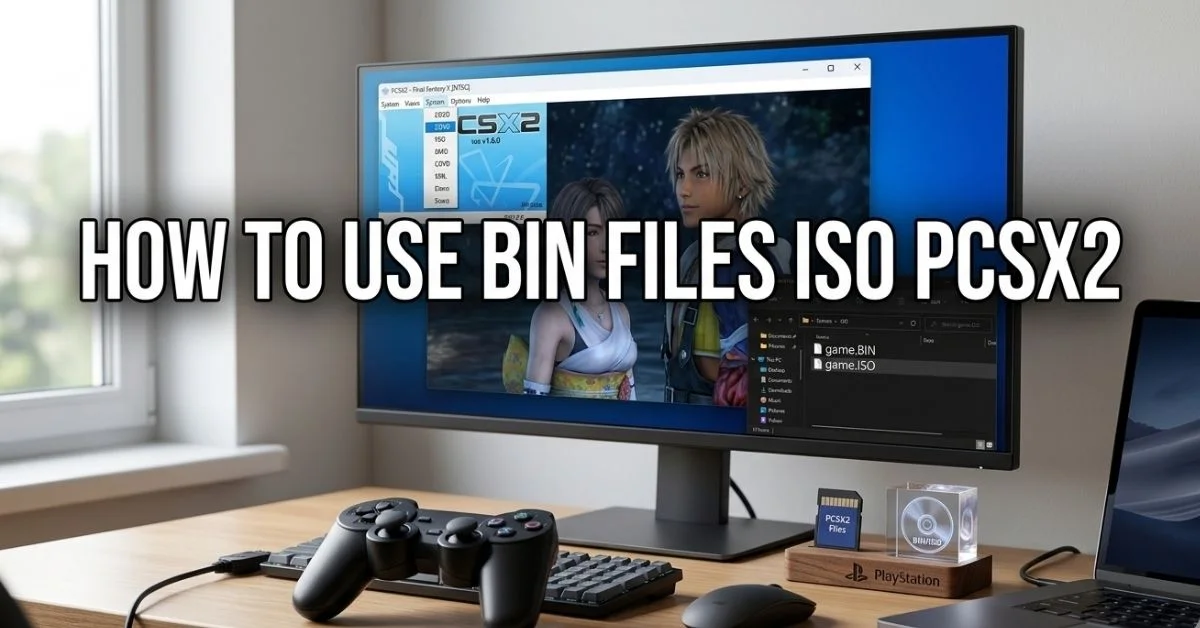
Running PlayStation 2 games on a PC can be challenging without the right tools. BIN and ISO files, which are digital copies of PS2 game discs, require a proper emulator setup to work smoothly. PCSX2 is the most widely used PS2 emulator that allows users to play these games without the original discs, but new users often struggle with importing BIN/ISO files, configuring BIOS, and adjusting performance settings.
This guide provides a complete, step-by-step explanation of How to Use BIN Files ISO with PCSX2. From initial setup to plugin configuration, loading games, and troubleshooting errors, you will learn how to get your PS2 games running efficiently. By following these instructions, you can avoid common issues like crashes, lag, or incompatible plugins while ensuring optimal graphics and smooth gameplay.
Understanding the differences between BIN and ISO files, mounting them correctly, and applying performance optimizations are essential skills for anyone looking to emulate PS2 games. This article covers everything you need to know for a seamless experience on PC, whether you are using Windows, macOS, or Linux.
What is PCSX2
PCSX2 is a free and open-source PlayStation 2 emulator designed for PCs. It translates PS2 game code into a format that modern computers can understand, allowing games to run without the original console. PCSX2 supports Windows, macOS, and Linux, providing flexibility for users across platforms.
The emulator includes a plugin-based system that handles graphics, audio, and controller input. This modular setup ensures that users can adjust performance and compatibility depending on their PC’s capabilities. PCSX2 has been under continuous development since its release, making it one of the most reliable and feature-rich PS2 emulators.
Because it mimics the original PS2 environment, PCSX2 requires a proper BIOS dump from an actual PS2 console. Without a valid BIOS, the emulator cannot run games. This is an important legal consideration, as users should obtain BIOS files only from consoles they own.
Read also: How to Get .MII Files Dolphin: Easy Step-by-Step Guide
Overview of BIN and ISO files
BIN and ISO files are digital images of PlayStation 2 game discs. An ISO file is a single, compressed copy of the entire disc, while a BIN file typically comes with a separate CUE file that contains track information. Both formats store all the data needed to run the game, but their structure differs slightly.
ISO files are simpler to use because they can be loaded directly in PCSX2. BIN files require mounting with a virtual drive or conversion to ISO, making them slightly more complex for beginners. Understanding this distinction is crucial to avoid errors when starting your games.
Most PS2 emulators, including PCSX2, can handle both file types effectively, but ensuring that the files are intact and correctly formatted is essential. Corrupted or improperly ripped BIN/ISO files will cause crashes or gameplay issues.
Setting Up PCSX2
Downloading and Installing
To get started, download the latest PCSX2 installer from the official website. Make sure to choose the correct version for your operating system, whether it’s Windows, macOS, or Linux. Installation is straightforward, and most default settings work for standard setups.
During installation, select the plugins you want to use. Graphics and audio plugins can be configured later, so you don’t need to worry about advanced settings at this stage. Completing the installation prepares your system for importing BIN or ISO files.
Once installed, open PCSX2 to access the initial configuration wizard. This wizard guides users through setting up the BIOS, plugins, and default paths for game files, providing a simple way to get started even if you are new to emulation.
Configuring BIOS
The BIOS is the firmware from an actual PlayStation 2 console, and it is required for PCSX2 to run games. After downloading your own BIOS legally from your PS2, load it in the BIOS configuration menu within PCSX2.
Select the BIOS region that matches your game collection to prevent compatibility issues. For example, NTSC-U games work best with a USA BIOS, while PAL games require a European BIOS. Multiple BIOS versions can be stored for flexibility.
Proper BIOS configuration ensures that games start correctly and saves work without errors. Always verify that your BIOS file is complete and corresponds to your console region.
Configuring Plugins and Settings
Graphics (GSdx)
How to Use BIN Files ISO with PCSX2 uses the GSdx plugin for rendering graphics. This plugin allows users to adjust resolution, texture filtering, and scaling options to improve game visuals. Higher resolutions make games look better but may require a more powerful PC to maintain smooth performance.
GSdx supports both hardware and software rendering. Hardware mode uses your GPU for better performance, while software mode improves compatibility for games that don’t run well on hardware. Selecting the right mode depends on your system specs and the game being played.
You can also enable widescreen hacks or anti-aliasing within GSdx to enhance the visual experience. These options allow classic PS2 games to appear sharper on modern monitors without affecting gameplay significantly.
Audio and Input Plugins
Audio is handled by plugins like SPU2-X, which emulates the PS2 sound processor. Correct configuration ensures clear sound effects and music without glitches. Adjusting latency or output settings can fix common issues like crackling or delayed audio.
Input plugins, such as Lilypad, manage controllers, keyboards, and gamepads. This plugin allows mapping buttons and triggers, enabling you to play with devices ranging from PS4 controllers to custom USB pads.
Balancing audio and input settings with performance ensures a smooth gameplay experience. Minor adjustments often resolve lag or unresponsive controls without altering the game itself.
Controller Setup
Connecting a controller to PCSX2 is simple but requires mapping buttons correctly. Open the input plugin configuration and assign each control to match the original PS2 layout.
Test your controller with simple games to ensure responsiveness. Some controllers may need additional drivers or software to function properly.
Once mapped, controller settings are saved for future use, so you won’t need to repeat the setup each time you start PCSX2. This allows for consistent, console-like gameplay.
Loading BIN/ISO Games
Mounting BIN/ISO Files
ISO files can be loaded directly through the PCSX2 interface, while BIN files often require a virtual drive such as Daemon Tools. Mounting the BIN with a corresponding CUE file allows PCSX2 to read it as if it were a physical disc.
Ensure that the BIN/ISO files are complete and not corrupted. Incomplete files will cause the emulator to freeze or fail to load. Proper naming conventions can also help PCSX2 detect the correct game region and settings.
Once mounted, select the virtual disc in PCSX2 and start the game. A correctly mounted BIN or ISO should load without errors, providing the same experience as a physical PS2 disc.
Running Games
After loading the BIN/ISO, PCSX2 will emulate the PS2 environment. Most games start automatically, but some may require adjusting the emulation settings.
Monitor performance and adjust plugins if necessary. Some demanding games may need lower resolution or additional speed hacks to maintain smooth gameplay.
Once configured, games will run as if they were on a PS2 console. Save frequently using in-game methods or PCSX2’s save states to avoid losing progress.
Common Errors
Crashes or freezing often result from misconfigured plugins, incorrect BIOS, or corrupted BIN/ISO files. Check error logs to identify the source of problems.
Missing libraries or outdated drivers can also cause games not to start. Updating PCSX2 and your GPU drivers usually resolves these issues.
In cases of persistent errors, re-ripping the original PS2 disc or converting BIN files to ISO may be necessary. Always back up files to prevent data loss.
Performance Optimization
Speed Hacks
PCSX2 includes speed hacks that reduce processor load and increase game performance. These options modify how the emulator handles complex operations, making slower PCs capable of running demanding titles.
Experiment with different combinations to find the best balance between speed and compatibility. Overusing speed hacks may cause glitches in some games, so monitor changes carefully.
Speed hacks are particularly useful for older systems where high-resolution settings would otherwise slow gameplay. They allow more games to run smoothly without upgrading hardware.
Resolution Scaling
Increasing resolution improves visuals but requires more GPU power. PCSX2 allows scaling beyond the PS2’s original resolution to fit modern monitors.
Higher resolutions can reveal textures and details that were not visible on the original console. However, monitor your system performance to prevent frame drops.
Combining resolution scaling with anti-aliasing enhances graphics quality significantly while keeping gameplay smooth, especially on mid to high-end PCs.
Frame Skipping
Frame skipping helps maintain gameplay speed when your system struggles to render frames in real time. PCSX2 skips certain frames to prevent slowdown without affecting game mechanics significantly.
This feature is particularly effective for fast-paced action games that demand high processing power. Adjust frame skipping cautiously to avoid making motion appear choppy.
Frame skipping, combined with other performance tweaks, ensures consistent gameplay even on older hardware. This allows users to enjoy PS2 games without interruptions.
Save States and Memory Cards
Creating and Using Save States
PCSX2 allows saving game progress at any point using save states. These snapshots preserve the exact moment in the game, making it easier to retry difficult sections.
To create a save state, press the assigned shortcut or select the option from the menu. Load states similarly, allowing you to resume instantly from the same point.
Save states complement in-game saves and provide a safety net against crashes or errors. They are essential for longer games where frequent progress tracking is important.
Emulating Memory Cards
Memory card emulation replicates the PS2 console’s storage system. PCSX2 allows creating virtual memory cards that function identically to physical ones.
Save in-game progress to these memory cards, which are stored on your PC. Properly organizing memory cards helps maintain compatibility and prevents data loss between games.
Using both save states and memory cards gives flexibility and security, ensuring that you never lose progress due to emulator issues.
Ripping Your PS2 Discs
Tools and Steps
To create BIN/ISO files from your PS2 discs, use disc ripping tools such as ImgBurn or PowerISO. Insert your game disc and follow the software’s instructions to create an image file.
Ensure the process completes without errors. Verify file integrity by testing the ISO or BIN on PCSX2 before deleting the original disc.
Organizing your rips with proper names and directories makes it easier to load games and prevents region or version mismatches.
Legal Considerations
Ripping your own PS2 discs is legal, but downloading games you do not own is not. Always use BIOS and games from your personal collection.
Avoid sharing copyrighted files online. Legal compliance protects you from potential infringement issues while allowing you to enjoy PS2 games legitimately.
Emulation provides a convenient way to preserve your old game library, but it should be done responsibly with respect to copyright laws.
Game Compatibility and Tips
Popular Games Examples
PCSX2 runs thousands of PS2 titles, including classics like Final Fantasy X, Kingdom Hearts, and Shadow of the Colossus. These games often benefit from enhanced graphics and smoother frame rates.
Some titles require specific plugin configurations or speed hacks to run flawlessly. Checking PCSX2’s compatibility list helps identify the best settings for each game.
Testing games individually ensures that they run as intended and allows for fine-tuning performance or controls where necessary.
PCSX2 Updates
PCSX2 is regularly updated to improve compatibility, fix bugs, and add new features. Keeping the emulator current ensures the best performance and access to the latest plugins.
Updates may also enhance support for newer operating systems, hardware, and controller configurations. Regular maintenance prevents common crashes or glitches.
Referencing the official PCSX2 website for release notes provides guidance on changes and helps troubleshoot issues more effectively.
Conclusion
Using BIN and ISO files in PCSX2 allows you to play your favorite PS2 games on a PC with full control over graphics, performance, and input settings. By correctly setting up BIOS, configuring plugins, and optimizing speed and resolution, you can prevent crashes and enjoy seamless gameplay. Save states and memory card emulation ensure your progress is secure, while proper BIN/ISO management keeps your library organized. Ripping your own PS2 discs legally adds flexibility and preserves your collection. Regular updates and compatibility checks help maintain smooth performance across titles. Following this guide gives you everything needed to run PS2 games efficiently, whether you are on Windows, macOS, or Linux. Start applying these steps today to experience classic PS2 games like never before.
Read More: file
FAQs
How do I open BIN files in PCSX2?
Use a virtual drive like Daemon Tools to mount the BIN file with its CUE file. Then, select the mounted drive in PCSX2 to load the game.
Can PCSX2 run ISO files directly?
Yes, ISO files can be loaded without additional software by selecting “Run ISO” in the PCSX2 menu.
Do I need BIOS to run PCSX2 games?
Yes, a legal BIOS dump from your PS2 console is required for the emulator to function correctly.
How do I fix PCSX2 crashing on startup?
Check BIOS configuration, update plugins, and ensure your graphics drivers are current. Reinstall PCSX2 if necessary.
Can I use a PS4 controller with PCSX2?
Yes, using the Lilypad plugin, you can map PS4 controllers or other USB gamepads for PCSX2 gameplay.
Why is my PCSX2 game lagging?
Adjust speed hacks, lower resolution scaling, or enable frame skipping. Ensure your PC meets the game’s recommended specifications.