
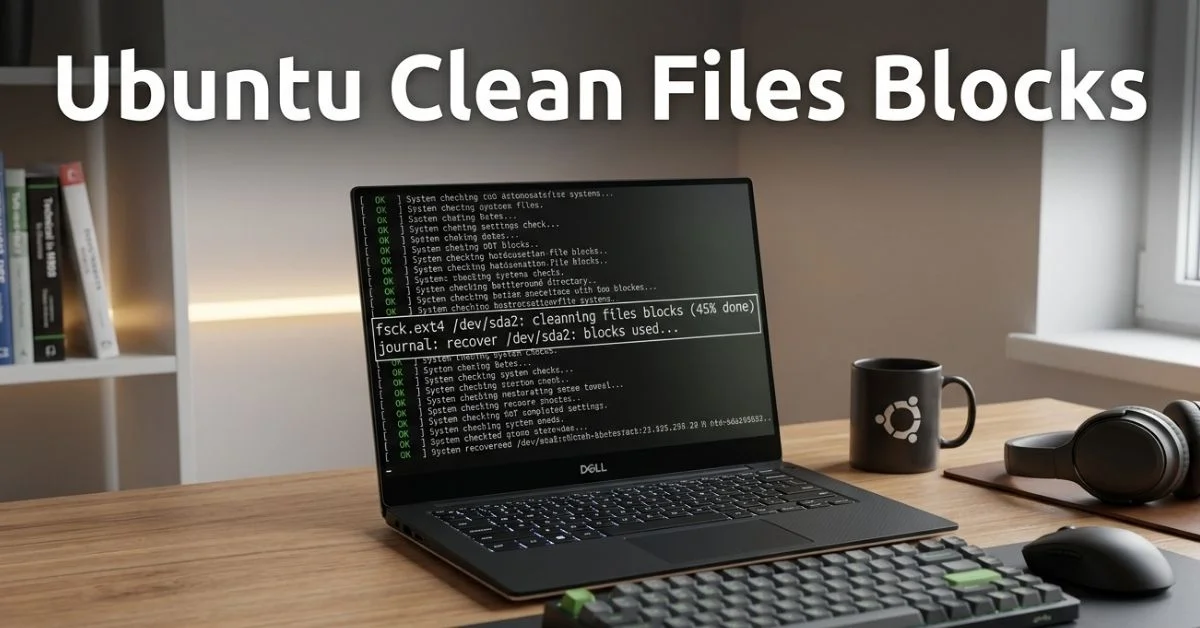
When you ubuntu clean files blocks, seeing a message like /dev/sda1: clean, X files, Y blocks can be confusing. For many users, it raises immediate questions about whether the system is safe or if something has gone wrong with the disk. This message is part of the normal file system check process, indicating that the filesystem has been scanned and is free of inconsistencies. However, in some cases, boot hangs or delays can occur, leaving users unsure how to proceed.
Understanding why this message appears and knowing how to address potential issues can prevent unnecessary worry and downtime. This guide explains the meaning of the “clean files blocks” message, walks you through practical steps to verify disk health, and provides solutions to common boot issues. By following these methods, you can safely manage your Ubuntu system and ensure smooth startup without risk of data loss.
We will cover not only the immediate fix for any boot hang, but also tools, commands, and preventative measures that give you confidence in maintaining the health of your Ubuntu file systems. Whether you are troubleshooting a minor message or preparing for more complex system maintenance, this article offers clear guidance from start to finish.
Understanding the Message
/dev/sda1 Explained
The /dev/sda1 designation refers to the first partition on the primary hard drive in your system. Linux uses this notation to identify specific storage devices and partitions, which the operating system checks during startup. When Ubuntu performs a filesystem check, it examines this partition to ensure that all files, inodes, and disk blocks are intact and consistent.
The “clean” status indicates that no filesystem corruption was detected, and all data structures are correctly aligned. Seeing the exact number of files and blocks provides technical confirmation that the system has scanned and verified the partition. Most of the time, this message is purely informational and does not indicate any error that needs intervention.
Users should note that while /dev/sda1: clean is normal, a delay at this message may indicate other issues like slow disks or filesystem inconsistencies. Recognizing the distinction helps determine whether a practical fix is necessary or if the message can simply be acknowledged as routine.
Read also: Unlock the Mystery of What Is .PRIN File Premiere
Files and Disk Blocks in Ubuntu
Ubuntu’s filesystem, often ext4, organizes storage into files and disk blocks. A block is a small unit of data storage, and the operating system tracks which blocks belong to which files. During boot, the filesystem check counts these blocks and ensures they are allocated correctly without corruption. Inodes, another critical structure, store metadata about files, such as permissions, ownership, and location.
When the system reports clean blocks, it confirms both the allocation of blocks and the integrity of inodes. If these structures were inconsistent, the system would trigger repair processes or notify you of potential corruption. Understanding blocks and inodes clarifies why a clean message is positive, even if the boot process pauses briefly.
Normal vs Problematic Boot Messages
Not every filesystem message signals a problem. A standard clean files blocks message indicates the system is healthy, while errors like “filesystem errors detected” require intervention. Problematic messages may include mentions of corrupted blocks, failed mounts, or forced repairs, which are usually accompanied by automatic prompts to run fsck or boot into recovery mode.
Recognizing the difference between informational and critical messages ensures users do not panic unnecessarily. Most users encounter /dev/sda1: clean regularly without ever needing to intervene. However, for those experiencing boot delays, it is important to verify disk health and review logs to rule out underlying causes.
Common Causes of Boot Hangs
Filesystem inconsistencies can cause Ubuntu to pause during startup. Even if /dev/sda1 is clean, other partitions or disks may have minor errors, prompting systemd to wait while checking all mounts. This can be exacerbated by an unclean shutdown, power loss, or improperly ejected drives.
Disk corruption is another factor, often due to aging hardware, bad sectors, or file system fragmentation. While ext4 is resilient, repeated disk errors can cause temporary hangs until the system completes a thorough check. Users should monitor disk health proactively to prevent unexpected delays.
Improper shutdowns or kernel updates can also trigger boot pauses. When system files or configuration changes are incomplete, the operating system may perform additional verifications at startup. Understanding these common causes helps differentiate between routine messages and actual errors requiring action.
How to Check Filesystem Status
Using fsck safely
The fsck command is a standard tool to check and repair Linux file systems. Running it on a mounted filesystem is risky, so booting into recovery mode or using a live USB ensures safe operation. The command evaluates blocks, inodes, and metadata, reporting any inconsistencies and offering automatic repairs with options like -f (force) and -y (yes to all fixes).
Before executing fsck, users should back up critical data. Even though filesystem repairs are usually safe, a corrupted partition can worsen if repairs are interrupted. Carefully following recommended options prevents unintended changes and ensures filesystem integrity.
Running fsck provides insight into disk health, showing whether the clean message at boot accurately reflects a consistent system or if further maintenance is required. This is a reliable method to address delayed startups and prevent future issues.
Booting into Recovery Mode
Recovery mode offers a minimal environment where essential services are disabled, allowing safe filesystem checks. By selecting this option from the GRUB boot loader menu, users can run fsck on critical partitions without risking ongoing processes.
In recovery mode, the terminal provides direct access to the root filesystem and allows troubleshooting without loading the full graphical environment. Users can inspect logs, check disk usage, and perform repairs in a controlled environment, making it the preferred method for fixing potential boot hang issues.
Using Ubuntu Live USB
A live USB allows booting into a fully functional Ubuntu environment independent of the installed system. This is particularly useful if the root filesystem is uncountable or if the system fails to boot entirely. From the live session, users can mount partitions, run fsck, and back up data.
This approach ensures that filesystem checks do not interfere with ongoing processes and that disk repairs are applied safely. It is also a practical way to recover files from an otherwise inaccessible system, providing both flexibility and peace of mind.
Step-by-Step Fix
Checking boot logs is the first step when experiencing startup delays. Commands like journalctl and dmesg provide real-time insights into system initialization, revealing which services or partitions may be causing delays. Logs often indicate whether a filesystem check is normal or symptomatic of a deeper issue.
If the logs point to minor inconsistencies, running fsck on the affected partition usually resolves the problem. After repairs, rebooting the system ensures that changes are applied correctly and that the /dev/sda1: clean message appears promptly without delay.
Verification is critical. After completing repairs, monitor subsequent boot messages and ensure no errors are repeated. Regular log reviews help users maintain a stable system and anticipate potential issues before they escalate.
Advanced Insights
Inodes and disk blocks form the foundation of ext4 and other Linux filesystems. Each inode contains metadata about a file, while disk blocks store the actual content. Misalignment or corruption in either structure can cause boot delays or errors, highlighting the importance of filesystem integrity.
Ext4 remains one of the most robust Linux filesystems, balancing speed, stability, and reliability. Features like journaling prevent many common corruption issues, but understanding block allocation and inode management helps users interpret boot messages accurately and troubleshoot when needed.
Proactive monitoring commands, including df, du, and tune2fs, provide ongoing insights into filesystem health. These tools allow users to track disk usage, verify integrity, and schedule repairs before small inconsistencies lead to boot hangs.
Prevention and Maintenance
Regular disk checks prevent minor errors from becoming critical. Scheduling periodic fsck scans during maintenance windows ensures partitions remain consistent and reduces startup delays.
Safe shutdown practices are essential. Abrupt power-offs, forced restarts, and hardware removal during operation can cause filesystem inconsistencies, even in ext4. Using proper shutdown commands minimizes risk and preserves data integrity.
Backing up important files is a critical step in maintenance. While Ubuntu is generally resilient, hardware failures or unexpected corruption can compromise data. Combining backups with routine filesystem checks offers a comprehensive strategy for system reliability.
Resources & References
Ubuntu official documentation provides detailed guidance on filesystem management, recovery mode, and boot troubleshooting. These resources are authoritative references for system administrators and casual users alike.
Ask Ubuntu and other community forums offer practical advice and real-world solutions. Experienced contributors often share insights on resolving uncommon boot issues, interpreting logs, and optimizing system performance.
Disk repair tools such as fsck, tune2fs, and live USB environments enable safe, hands-on troubleshooting. Using these tools according to recommended procedures ensures consistent results and maintains system stability.
Conclusion
The /dev/sda1: clean, X files, Y blocks message in Ubuntu is usually a sign that your filesystem is healthy. Understanding what it means and how to interpret boot messages can prevent unnecessary concern. Using tools like fsck, recovery mode, or a live USB allows you to safely check and repair partitions when needed. Regular disk monitoring, safe shutdowns, and routine maintenance help avoid future boot delays. With these steps, you can manage your Ubuntu system confidently and ensure smooth startups. Applying these practices consistently enhances system reliability and keeps your files secure. For ongoing Ubuntu tips, consider exploring advanced filesystem monitoring and proactive maintenance guides.
Read More: file
FAQs
What does /dev/sda1: clean, X files, Y blocks mean?
It indicates that the filesystem on the partition has been checked and found consistent, with no corruption detected.
Is the “ubuntu clean files blocks” message safe in Ubuntu?
Yes, it is usually informational and confirms the partition is healthy, though delays may suggest minor issues.
How do I check disk health in Ubuntu?
You can use fsck in recovery mode, review logs with journalctl or dmesg, and monitor filesystem integrity with tools like tune2fs.
Can Ubuntu live USB fix boot issues?
Yes, a live USB allows you to access the system independently, run filesystem checks, and repair partitions safely.
Why does Ubuntu hang at boot even when /dev/sda1 is clean?
Boot delays can result from other partition checks, minor inconsistencies, or slow disks, even if the main partition is healthy.
How can I prevent future boot hangs in Linux?
Regular filesystem checks, safe shutdowns, backups, and monitoring disk health reduce the risk of boot delays and ensure stable performance.